create new ticket
 check ticket status
- Registrations can be found in the Registration page.
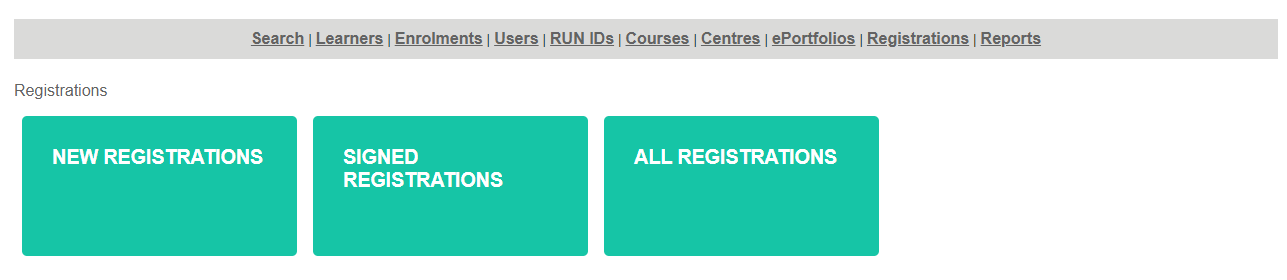
- You can search for a specific user by typing their name into the ‘Search:’ bar.

- The table shows the leaners registration details, including their first name, surname, the date the application was submitted, the status of the application. and their funding type.
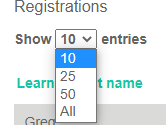
- You can alter the number of entries shown to 10,25,50 or All by clicking the drop-down tab between Show and entries and clicking your desired value.
- To view a specific learner’s application, click View or Edit on the right-hand end of the row.

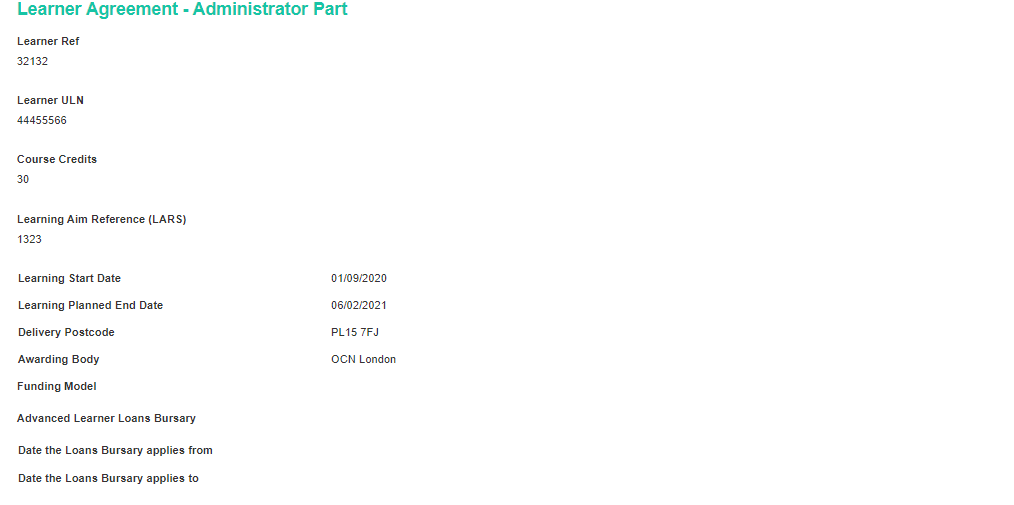
- This brings up the following Learner Agreement. The user should enter all the fields.
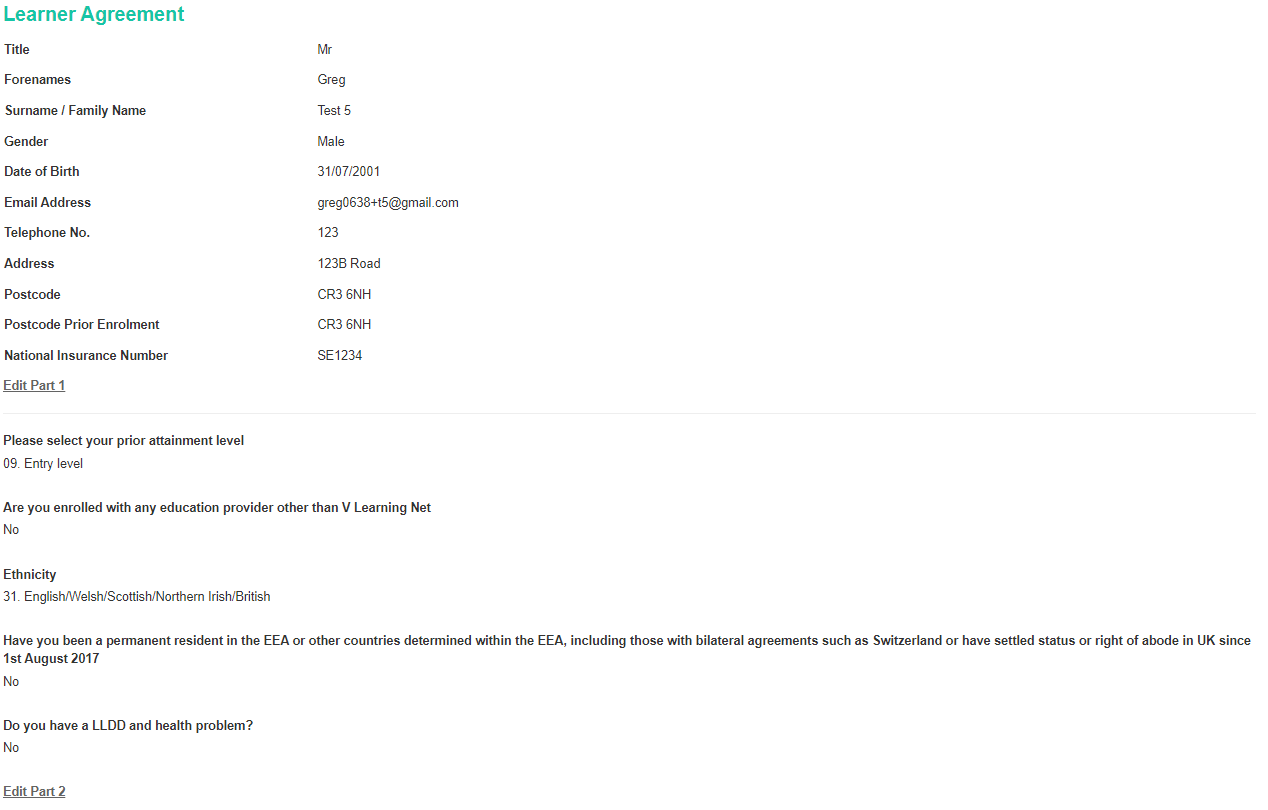
- If you need to edit answers for the first section click Edit Part 1

- If you need to edit answers for the second section click Edit Part 2

- If you need to edit answers for the third section click Edit Part 3

- Below these three sections is the Learner Agreement - Administrator form. The administrator should fill in each field.
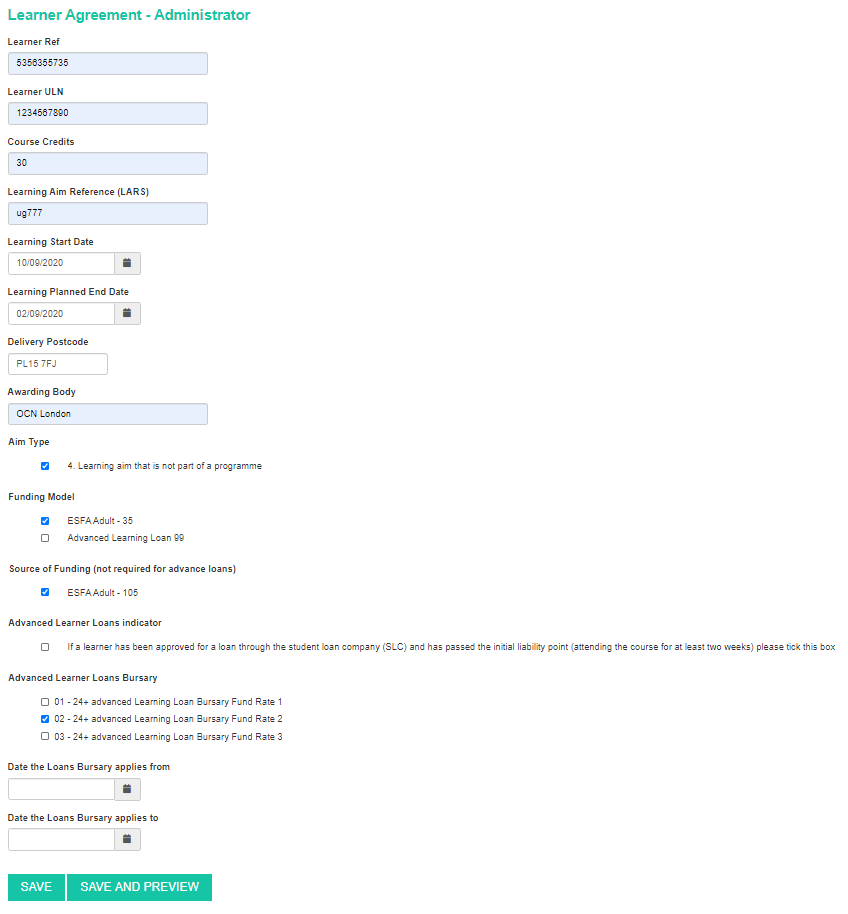
- If the administrator wishes to save their answers but not submit the form, they should click SAVE.

- If the administrator wishes to save their answers, then go on to preview and submit their answers, they should click SAVE AND PREVIEW.

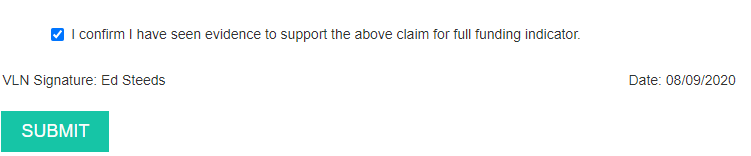
- This generates a page with a review of the answers and the tik box below. The administrator must click the box if they have seen evidence to support the above claim for full funding indicator, to confirm the registration. The administrator should then click the SUBMIT button.
- The Learner will then receive an email asking them to complete their registration. Once they have done this you will then see their status change to RETURN FOR CONFIRMATION

- WHAT HAPPENS NEXT? A summary form is sent over to the Learner who digitally signs the form and it is electronically returned (i.e. the status of the report changes to Signed by Leaner)
- Once the learner has signed their declaration they will appear in the SIGNED REGISTRATIONS section.
- Clicking on the SIGNED REGISTRATIONS button brings up the table.

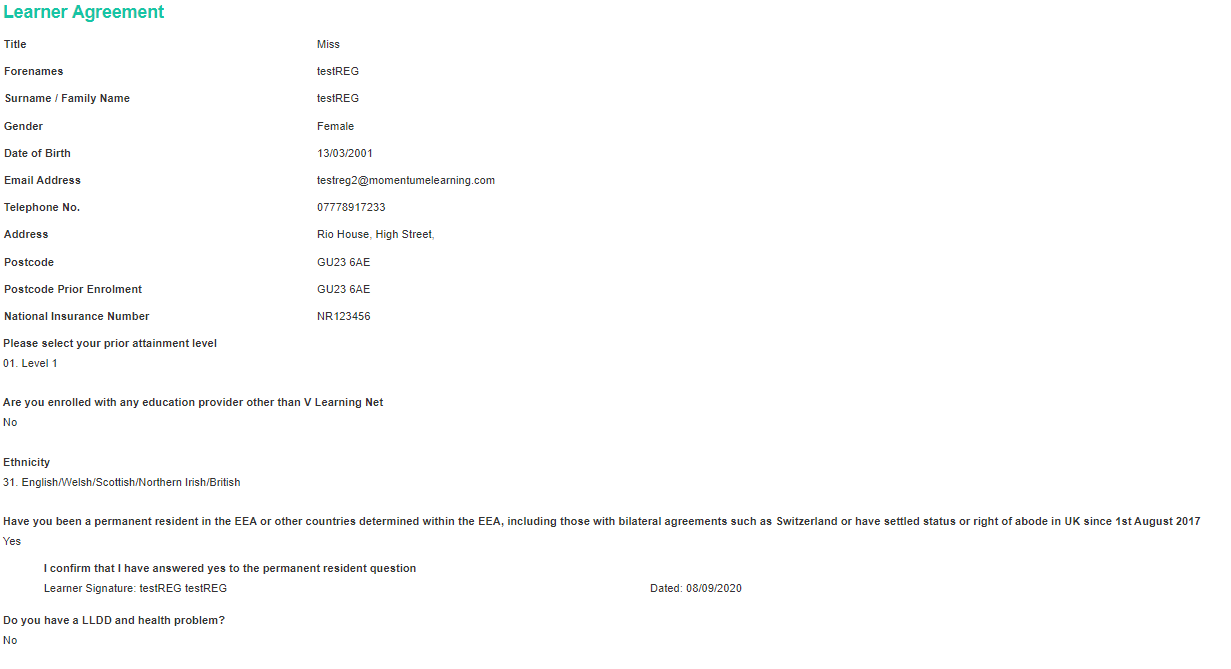
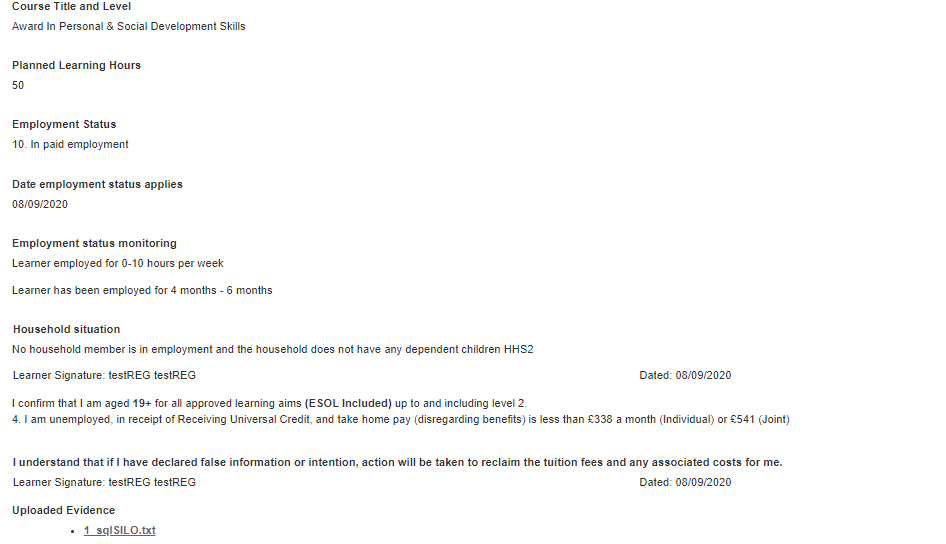
- Click the View | Edit on the desired user to bring up the following Learner Agreement and Declaration
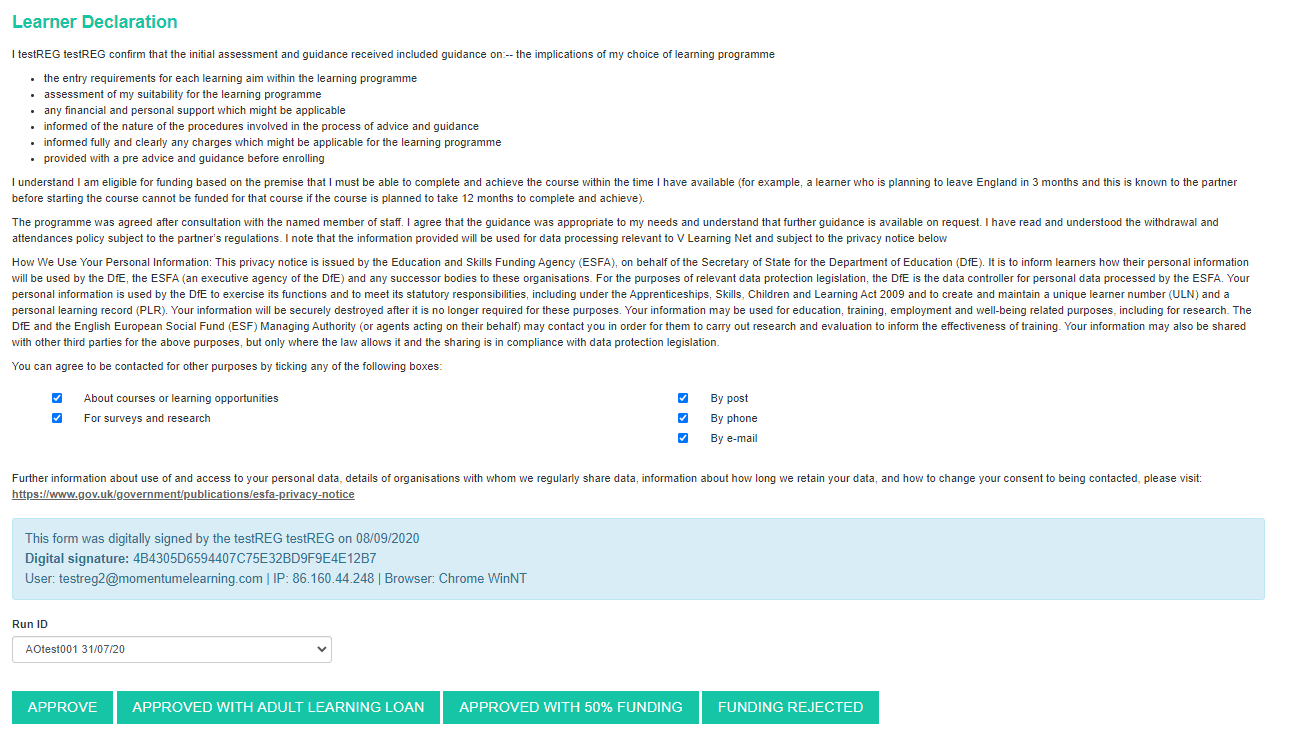
- Click the tick boxes to select what purposes you want to be contact for, and by what means (ie by post, phone or e-mail).

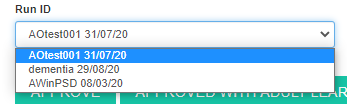
- Select the correct Run ID from the drop-down tab. If the correct Run ID does not exist please contact the administrator and they will create the correct one.
- When the above points are finalized and developed the process picks up back in the system the ADMINISTRATOR then clicks one of the following buttons:
- Approve
an email is sent to the learner and they can begin the Qualification
2. Approved with Adult Learning Loan
an email is sent to the learner and they can begin the Qualification
(the Admin then completed the Adult Learning Loan administration outside of the e-Portfolio)

3. Approved with 50% funding
a PayPal payment is required (this will then require the ADMINISTRATOR to handle the payment and then press the APPROVE button once payment is received)
[the plan is to automate this as a PHASE 2 development item]
This will update status to awaiting payment 50%

4. Funding Rejected
a PayPal payment is required
(this will then require the ADMINISTRATOR to handle the payment and then press the APPROVE button once payment is received)
This will update status to awaiting payment 100%
[the plan is to automate this as a PHASE 2 development item]
When one of the 2 options is returned to the Administrator what happens next?
Does that Administrator upload a signed form to a funding website or multiple websites?
How is payment / co-payment handled (*waiting for PayPal details)
QUESTION - How do we assign the RUN ID - Ideally Kelly has a drop down before the Approve button. If there is no RUN ID for that course (or correct one for the learner then a new one needs to be set up by the Admin)